Best Sandisk Recovery Software in 2026
Five practical tools for deleted files, reformatted cards, lost partitions, or readable SanDisk drives that suddenly show as RAW. Disk Drill leads for its approachable workflow plus built-in imaging.
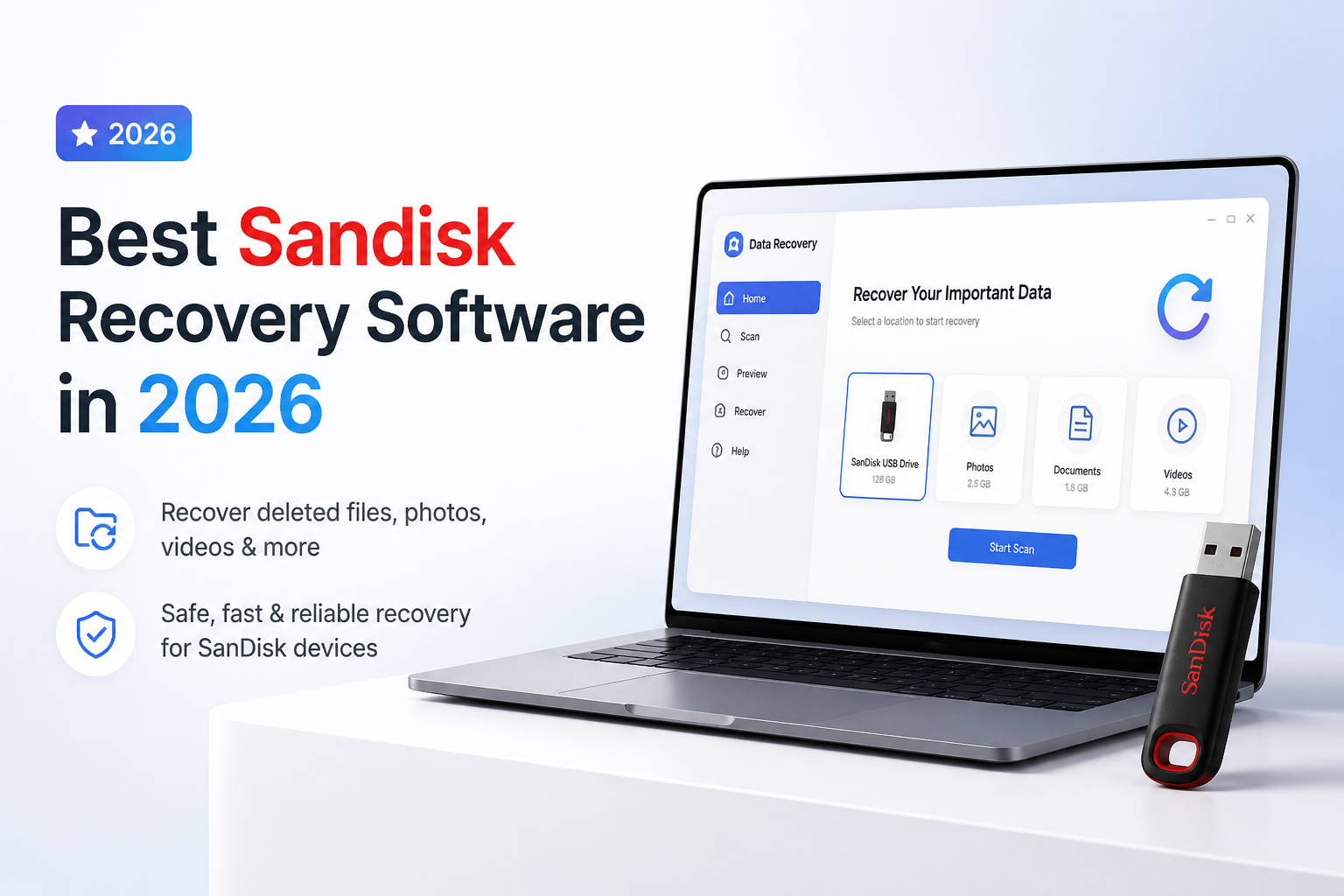
Disk Drill
9.2/10Best for: SanDisk owners who want a clear visual workflow for SD cards, USB flash drives, portable SSDs, or disk images
- Clean results view with useful filters plus previews
- Creates byte-to-byte disk images
- Windows edition includes 500 MB of free recovery
- One PRO license covers Windows plus macOS
R-Studio
8.8/10Best for: Experienced users working with damaged partitions, unfamiliar file systems, or more complicated storage layouts
- Strong file-system reconstruction tools
- Supports disk images plus virtual storage
- Useful hex viewer for checking whether file content remains
- Runs on Windows, macOS, plus Linux
DMDE
8.5/10Best for: Technical users who need lost-partition tools or targeted folder recovery without paying premium-app prices
- Very low entry price
- Generous per-operation free recovery allowance
- Strong lost-partition plus disk-editing functions
- Available for several desktop operating systems plus DOS
Best SanDisk Recovery Software Compared
These five programs are compared by safe disk-imaging support, usable free recovery, license price, plus overall practicality for SanDisk cards or drives. Scores reflect editorial judgment rather than a universal recovery-rate benchmark, since results depend heavily on overwriting, TRIM, physical condition, plus the original file system.
| Tool | Disk Imaging | Free Recovery | Price | Score |
|---|---|---|---|---|
| 1.Disk Drill PICK | ● Yes | 500 MB on Windows | $89/yr | 9.2/10 |
| 2.R-Studio | ● Yes | Demo restrictions | $79.99 one-time | 8.8/10 |
| 3.DMDE | ● Yes | 4,000 files/run | $20/yr | 8.5/10 |
| 4.UFS Explorer Standard Recovery | ● Yes | 256 KB/file | $69.95 one-time | 8.3/10 |
| 5.PhotoRec | ● No | Unlimited | Free | 7.7/10 |
The 5 Best SanDisk Recovery Software Options, Reviewed
01 Disk Drill
Windows / macOS · CleverFiles
9.2/10
Disk Drill
Windows / macOS · CleverFiles
Disk Drill is the easiest pick here for a typical SanDisk mishap: deleted camera photos, an accidentally formatted SD card, or a USB drive that suddenly shows as RAW. Its scan results are grouped by file type, searchable, filterable, plus previewable before recovery. Windows users can recover up to 500 MB free, while the Mac edition uses its free tier mainly for scanning plus preview.
The practical advantage is its imaging workflow. You can create a byte-for-byte copy of readable media, put the original card or drive aside, then run further scans against that image. Disk Drill also covers common SanDisk formats such as FAT32, exFAT, NTFS, HFS+, plus APFS.
The main catch is price. PRO costs $89 per year, while a lifetime license is $149. Preview several large photos or videos before paying, since finding a filename does not prove the underlying file is intact.
Best forSanDisk owners who want a clear visual workflow for SD cards, USB flash drives, portable SSDs, or disk images
- Clean results view with useful filters plus previews
- Creates byte-to-byte disk images
- Windows edition includes 500 MB of free recovery
- One PRO license covers Windows plus macOS
- Good fit for photos, video, documents, plus mixed file sets
- Mac free edition is mainly for scanning plus preview
- Annual plan costs more than several technical alternatives
- No refund merely because the wanted files prove unrecoverable

02 R-Studio
Windows / macOS / Linux · R-Tools Technology
8.8/10
R-Studio
Windows / macOS / Linux · R-Tools Technology
R-Studio makes sense once a SanDisk recovery job moves beyond a basic undelete. It can scan physical devices, open disk images, inspect partitions, reconstruct several RAID layouts, plus show file data through a hex viewer. That depth helps with damaged exFAT or NTFS volumes where a simple wizard produces a pile of unsorted results.
The standard Windows license is $79.99. Lower-cost file-system-specific editions exist, though they are easier to outgrow if you regularly encounter cards or drives formatted on different systems.
R-Studio's dense interface is the tradeoff. A first-time user can easily choose the wrong scan target or spend too long adjusting parameters that Disk Drill handles automatically. It is powerful, but not especially forgiving.
Best forExperienced users working with damaged partitions, unfamiliar file systems, or more complicated storage layouts
- Strong file-system reconstruction tools
- Supports disk images plus virtual storage
- Useful hex viewer for checking whether file content remains
- Runs on Windows, macOS, plus Linux
- Capable RAID tools for advanced cases
- Busy interface takes time to learn
- Demo is primarily for evaluating scan results
- Separate editions can make licensing less obvious
03 DMDE
Windows / macOS / Linux / DOS · DMDE Software
8.5/10
DMDE
Windows / macOS / Linux / DOS · DMDE Software
DMDE is unusually capable for its price. It can inspect partition structures, locate lost volumes, edit disks, create images, plus recover files from common SanDisk formats. The free edition permits up to 4,000 files from the active directory per request, which can be enough for a focused photo folder.
Express costs $20 for one year. Standard is a $48 perpetual license for one operating-system family. Those prices make DMDE worth trying before buying a costlier program, especially if the directory tree still appears intact.
The awkward part is navigation. Buttons, panels, volume choices, plus recovery paths assume some storage knowledge. Read each dialog slowly. Saving recovered files to the source SanDisk device can overwrite material that has not been copied yet.
Best forTechnical users who need lost-partition tools or targeted folder recovery without paying premium-app prices
- Very low entry price
- Generous per-operation free recovery allowance
- Strong lost-partition plus disk-editing functions
- Available for several desktop operating systems plus DOS
- Perpetual Standard license includes ongoing updates
- Technical interface can confuse casual users
- Free recovery works one selected directory at a time
- Advanced controls create more room for operator error
04 UFS Explorer Standard Recovery
Windows / macOS / Linux · SysDev Laboratories
8.3/10
UFS Explorer Standard Recovery
Windows / macOS / Linux · SysDev Laboratories
UFS Explorer Standard Recovery puts more emphasis on controlled imaging than most consumer apps. Its multi-pass imager can record defective regions, helping you copy readable sectors first instead of hammering one troublesome spot. The imaging feature is available in the free trial without a disk-image size cap.
The trial scans plus previews without a time limit, though it only saves individual files up to 256 KB. A personal license starts at $69.95 for one desktop platform. It handles single SanDisk cards, USB drives, SSDs, HDDs, plus common virtual-disk formats.
This Standard edition is not intended for full NAS or RAID reconstruction. Its interface is also more technical than Disk Drill's, though prompts make it less forbidding than R-Studio or DMDE for many jobs.
Best forCareful users who want configurable multi-pass imaging before examining a slow or error-prone SanDisk drive
- Multi-pass disk imaging with a defect map
- Trial imaging has no image-size restriction
- Supports BitLocker plus encrypted APFS volumes
- Perpetual per-platform license
- Works on Windows, macOS, plus Linux
- Trial only saves files up to 256 KB each
- One personal license covers a selected platform, not every platform
- Standard edition lacks full RAID reconstruction
05 PhotoRec
Windows / macOS / Linux / DOS · CGSecurity
7.7/10
PhotoRec
Windows / macOS / Linux / DOS · CGSecurity
PhotoRec ignores much of the damaged file system, then searches raw storage for recognizable file signatures. That approach can recover photos, videos, documents, archives, plus other files from SanDisk cards that appear blank or severely corrupted. It is genuinely free plus open source.
The downside is organization. PhotoRec generally cannot restore the original folder tree or filenames, so a large card may produce thousands of generically named files. Fragmented video also remains difficult because basic carving works best when each file occupies contiguous blocks.
QPhotoRec provides a graphical front end on Windows. Even so, destination selection deserves attention. Recover to another physical device, never the SanDisk card being examined.
Best forPatient users who need free file carving from a badly damaged or reformatted SanDisk card
- Completely free with no recovery quota
- Works despite severe file-system damage
- Broad file-signature support
- Available on several operating systems
- Small portable download
- Usually loses original filenames plus folders
- Results can require hours of manual sorting
- Less effective on fragmented files
How We Evaluated SanDisk Recovery Software for 2026
We reviewed each tool against the problems SanDisk owners commonly face: accidental deletion, quick formatting, damaged FAT32 or exFAT volumes, missing partitions, plus cards that remain readable but behave inconsistently. The evaluation covered supported desktop platforms, disk-image creation, preview behavior, free recovery limits, pricing, file-system breadth, plus how easily a user could avoid writing to the source.
No single recovery percentage was treated as universal. A freshly deleted JPEG on a lightly used SD card is a very different job from a TRIM-enabled SSD or a card with failing NAND. Scores therefore favor safe workflow, transparent trial limits, useful previews, plus suitability for the intended user.
How to Choose Recovery Software for a SanDisk Card or Drive
Start with the device type plus symptoms. A healthy SD card with deleted photos calls for a straightforward scanner with previews. A RAW partition, missing volume, or damaged directory tree may benefit from R-Studio or DMDE. A slow drive with read errors needs imaging before any long scan.
Check the free tier before paying. Open several recovered previews, including large photos or videos from different folders or dates. A correct filename alone means little if the file content has been overwritten or replaced with zeros.
Common SanDisk Data Recovery Mistakes to Avoid
Do not accept Windows or macOS prompts to initialize, erase, format, or repair the device. Avoid CHKDSK, First Aid, plus similar file-system repair tools until important files are safely copied. Repair changes metadata, which can make later recovery harder.
Never install the recovery app on the affected drive. Restore files to a separate disk with enough free capacity. For a questionable SD card, slide its physical lock tab before connecting it through a compatible reader, though not every reader honors that switch.
Which SanDisk Recovery Tool Should You Use?
Disk Drill earns first place because it makes scanning, filtering, previewing, plus imaging manageable without burying the user in storage jargon. It fits the common SanDisk recovery job better than the more technical alternatives.
R-Studio offers deeper control, while DMDE gives experienced users excellent value. UFS Explorer deserves a look when careful imaging matters most. PhotoRec is the sensible no-cost fallback if you can live without original names or folders.
Create an image first when the device is slow or unstable, then scan that copy with two tools before deciding whether a paid license is worthwhile.